
Copyright Symbols are very useful if you’ve ever finished a piece of writing, a photo, or a piece of code and wanted to mark it as your own, you’ve probably reached for the © copyright symbols. It’s one of the most recognized marks in the world, but it’s also one of the most confusing to actually type, since it doesn’t sit on a standard keyboard key.
This guide breaks down everything you need: what the copyright symbols actually means, how to type it on Windows, Mac, iPhone, and Android, the HTML code for websites, and ready to use symbols you can copy and paste right now. No searching, no guesswork just grab what you need.
Copyright Symbols Copy And Paste
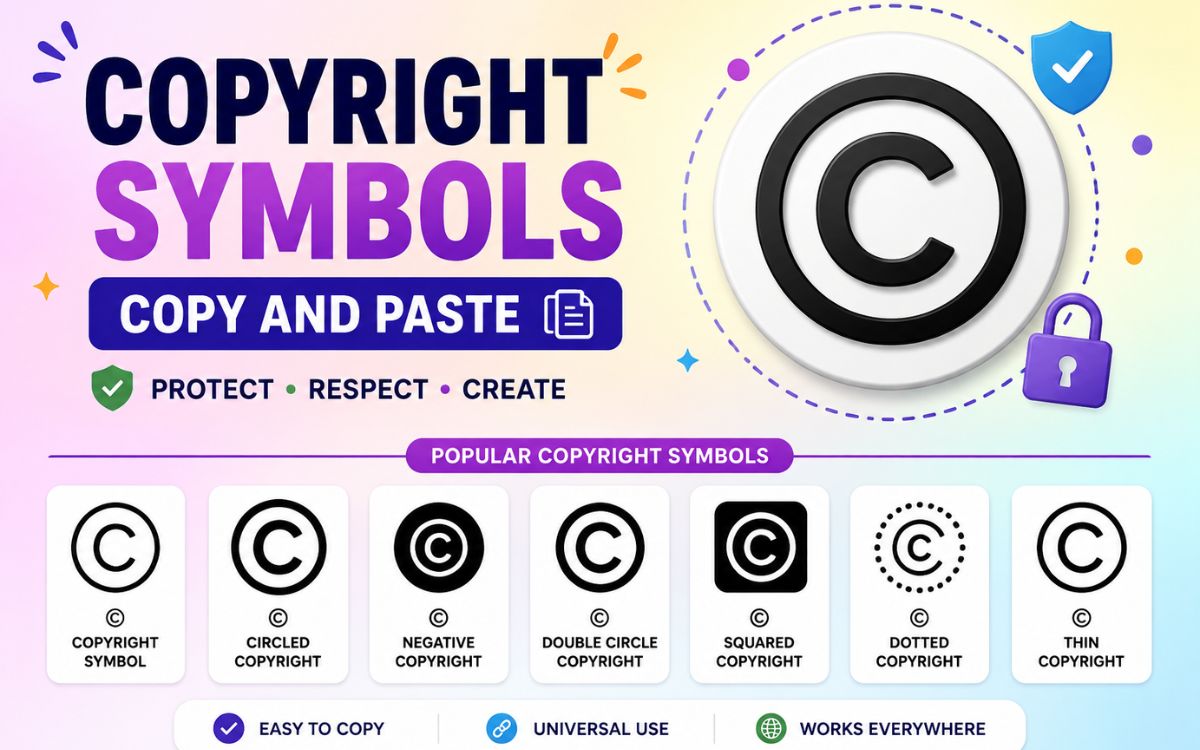
The quickest way to add copyright symbols to your document, bio, or website is to copy it directly. Use the table below and paste it wherever you need it.
| Copyright Symbols | Name | Common Use |
| © | Copyright Symbol | Creative works, books, websites, footers |
| ® | Registered Trademark | Legally registered brand names |
| ™ | Trademark | Unregistered brand names or logos |
| ℗ | Sound Recording Copyright | Music and audio recordings |
| ℠ | Service Mark | Unregistered service-based brands |
| ⓒ | Circled Latin C | Alternate/stylistic copyright mark |
To use any symbol above, highlight it, copy it (Ctrl + C or Cmd + C), then paste it (Ctrl + V or Cmd + V) into your document, social media bio, or website. This works on nearly every device and platform without needing to remember a single shortcut.
Copyright Symbols Meaning
The copyright symbol (©) is a visual notice that a creative work writing, music, art, software, or design is legally protected. It tells others that the creator holds exclusive rights over how the work is used, copied, or distributed.
A few important facts about what the symbol actually means:
- Copyright protection begins automatically the moment a work is created. The symbol isn’t what creates the legal right.
- The © mark simply serves as a public notice, reminding others that permission is required before reproducing the work.
- It’s commonly paired with a year and the rights holder’s name, for example: © 2026 Jane Doe.
- Using the symbol is not legally required in most countries, but it strengthens your position if a dispute over unauthorized use ever comes up.
Read Also This Blog: Stunning Degree Symbol
Copyright Symbols Text
If you need a plain text version of the copyright symbol for platforms that don’t support special characters well, here are common text based alternatives:
| Copyright Symbols Text Version | When To Use |
| (c) | Auto converts to © in Word and Google Docs |
| Copr. | Traditional written abbreviation |
| Copyright | Full word, used in formal legal notices |
| © | Direct Unicode character (safest for digital use) |
Most word processors, including Microsoft Word and Google Docs, will automatically convert (c) into © as soon as you type a space or press enter after it.
Copyright Symbols PNG
Sometimes you need the copyright symbol as an image file rather than text for example, in a logo, a watermark, or a design project where font rendering isn’t reliable. In these cases:
- Search for “copyright symbol PNG transparent” on a reputable icon or stock image site.
- Choose a transparent background version so it blends cleanly into your design.
- Vector formats (SVG) are ideal if you need to resize the symbol without losing quality.
- For simple digital documents or web pages, using the actual © Unicode character is usually better than an image, since it’s searchable, scalable, and doesn’t add load time.
Copyright Symbol: All Rights Reserved
You’ll often see the copyright symbol paired with the phrase “All Rights Reserved” in footers, books, and legal notices. A standard, complete copyright notice typically follows this structure:
© [Year] [Owner Name]. All Rights Reserved.
For example:
- © 2026 Bright Ideas Media. All Rights Reserved.
- Copyright © 2026 John Carter. All Rights Reserved.
The phrase “All Rights Reserved” originally had legal significance under an older international treaty, and while it’s no longer strictly required, it remains a widely used convention that reinforces the ownership notice.
Copyright Symbols On Keyboard
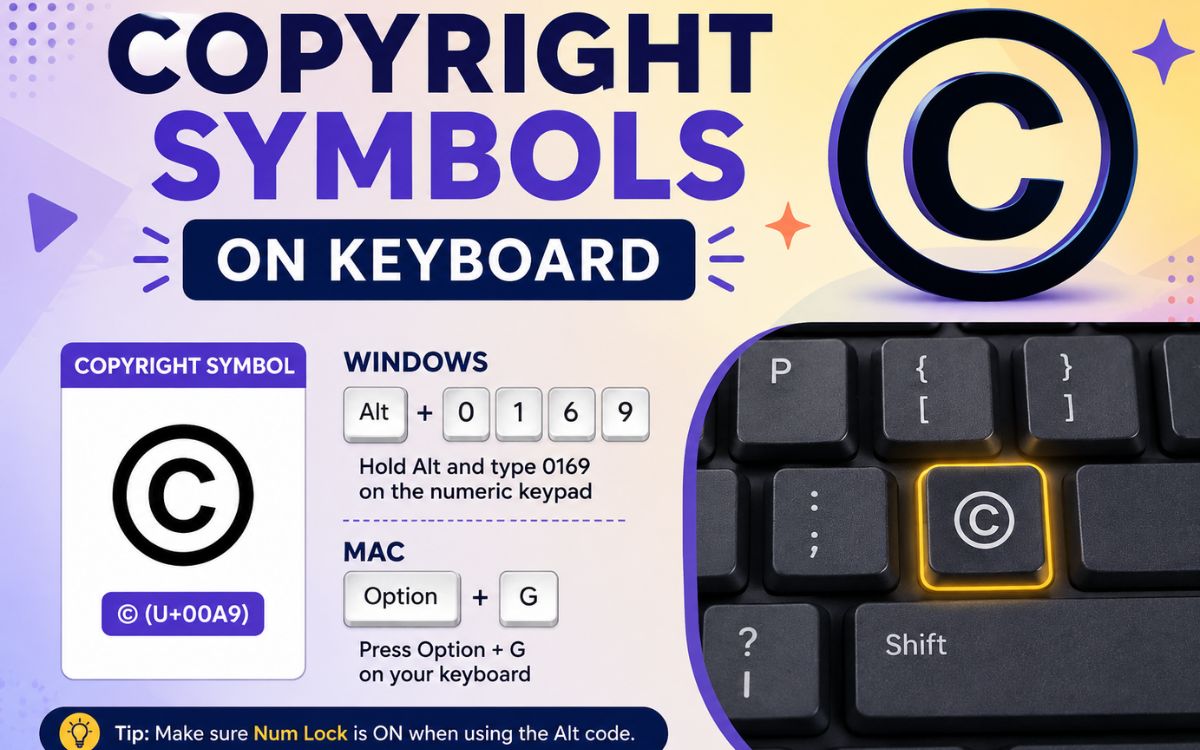
There’s no single dedicated key for the copyright symbol on standard keyboards, but every major operating system has a built-in method for typing it. Here’s a quick comparison:
| Device/OS | Shortcut | Notes |
| Windows | Alt + 0169 | Requires numeric keypad, Num Lock on |
| Mac | Option (⌥) + G | Works in any app |
| Word/Google Docs | Type (c) | Auto-converts to © |
| iPhone | Hold the “C” key | Select © from the popup |
| Android | Symbols keyboard → more symbols | Varies slightly by keyboard app |
| HTML | © or © | For websites |
| Linux | Ctrl + Shift + U, then 00A9 | Unicode input method |
Copyright Symbols Shortcut Key
The fastest keyboard shortcuts across platforms are:
- Windows: Alt + 0169 (numeric keypad required)
- Mac: Option + G
- Word/Docs: Type (c) and press space
If you don’t have a numeric keypad, copying and pasting the symbol directly is the simplest workaround.
Copyright Symbols C, P, R: What’s The Difference?
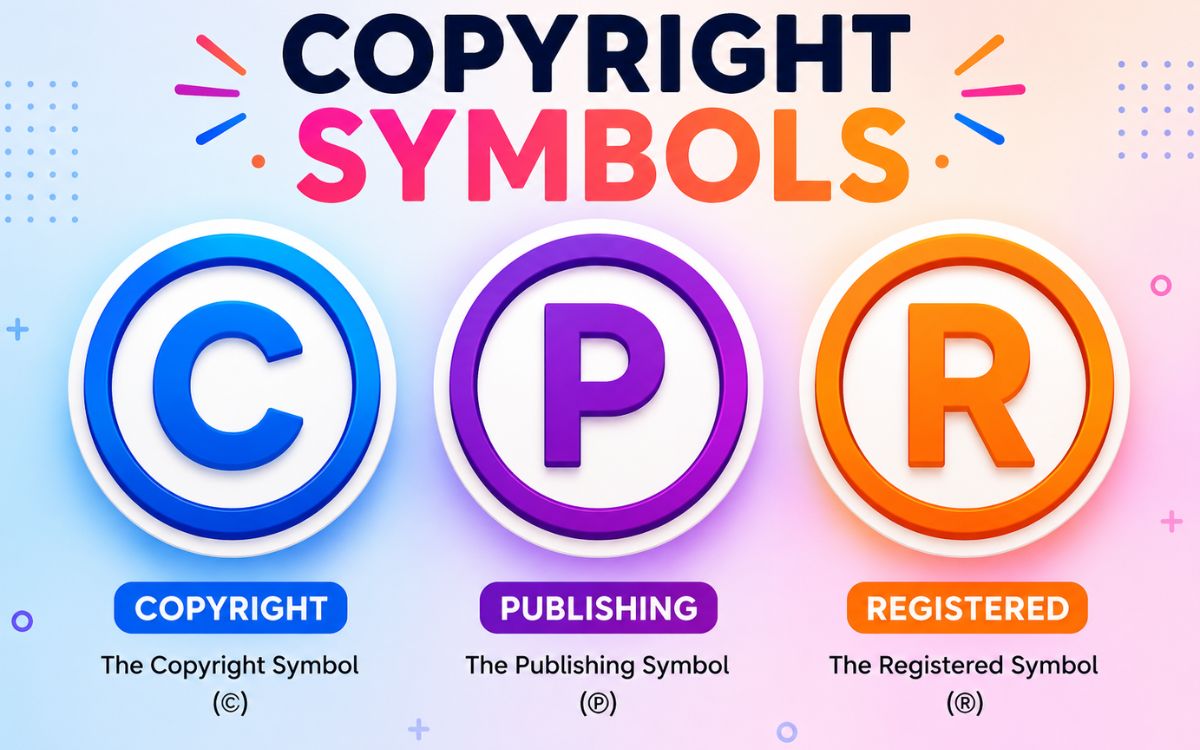
These three symbols look similar but mean different things legally. Here’s how they compare:
| Symbol | Stands For | Protects |
| © (C) | Copyright | Creative works : writing, art, music, software |
| ℗ (P) | Phonogram/Sound Recording | Audio recordings specifically |
| ® (R) | Registered Trademark | Brand names/logos officially registered with a trademark office |
A simple way to remember it: © covers what you created, ℗ covers what you recorded, and ® covers what you registered as a brand.
Copyright Symbols On Mac
Typing the copyright symbol on any Mac: MacBook Air, MacBook Pro, or desktop iMac uses the same shortcut across every application:
- Press Option (⌥) + G
This works instantly in Pages, Safari, Notes, Mail, and virtually any other macOS app without needing to open a special character menu.
How To Write And Make A Copyright Symbol?
Here’s a simple step-by-step method that works almost anywhere:
- In Word or Google Docs: Type (c) and press space, it auto converts to ©.
- On Windows: Hold Alt and type 0169 on the numeric keypad.
- On Mac: Press Option + G.
- On mobile: Long press the letter C on your keyboard (iPhone) or open the symbols menu (Android).
- Anywhere else: Copy the © symbol from a reference table and paste it directly.
If you’re writing by hand, simply draw a small circle around the letter “c” that’s the copyright symbol in its simplest form.
Copyright Symbol HTML
For websites, blogs, and web apps, use one of these HTML codes to display the copyright symbol correctly in any browser:
| Format | Code |
| HTML Entity | © |
| HTML Decimal | © |
| HTML Hex | © |
| CSS Content | \00A9 |
| Unicode | U+00A9 |
These codes are especially useful for website footers, where a copyright notice like © 2026 YourCompany. All Rights Reserved. is standard practice.
Frequently Asked Questions
Do I need to register my work to use the copyright symbol?
No. Copyright protection begins automatically once a work is created, so you can use the © symbol without formal registration.
Does the copyright symbol legally protect my work?
Not by itself. The symbol is a public notice, but the legal protection comes from the act of creation, not the symbol.
What is the difference between © and ®?
© protects original creative works like writing or art, while ® indicates a trademark that has been officially registered with a government office.
How do I type the copyright symbol without a numeric keypad?
Use Option + G on Mac, type (c) in Word or Docs, or simply copy and paste the © symbol from a reference table.
What does “All Rights Reserved” mean next to the copyright symbol?
It signals that the creator retains full control over how the work can be copied, distributed, or used, reinforcing the ownership notice.
Can I use the copyright symbol on social media?
Yes, © is a standard Unicode character supported in most bios, captions, and posts across platforms like Instagram, X, and LinkedIn.
Final Thoughts
The copyright symbol might be small, but it carries real weight from protecting your creative work to signaling ownership across websites, documents, and social platforms. Whether you copy and paste it directly, use a keyboard shortcut, or type it through Word’s auto-correct, you now have every method covered for Windows, Mac, iPhone, and Android.
Keep this guide handy the next time you need a quick ©, ®, or ™ everything you need is right here.
