

You glance at your phone and see a small fan of curved lines in the corner of the screen. You know it has something to do with the internet, but do you know what each change in that icon means?
The WiFi symbol is one of the most recognized icons in the world. It sits on phones, laptops, cafes, airports, TVs and even cars. Still, many people get confused when it adds a number, an exclamation point or a slash.
This guide explains the WiFi symbol in plain language. You will learn what it means, how to copy and paste it, where to download it, and how to fix the common problems it signals.
What Is the WiFi Symbol Meaning?
The WiFi symbol means a device is connected to, or can detect, a wireless network. The icon shows curved arcs that grow outward from a single dot. This pattern represents radio waves spreading from a router to your device.
In simple terms, the symbol answers one question: “Is my device talking to a wireless network right now?”
Here is what the main parts stand for:
- The dot at the bottom: the source of the signal, such as a router or access point.
- The curved arcs: the radio waves traveling through the air.
- The number of filled arcs: how strong your connection is.
- Extra marks (number, slash or exclamation point): the status or version of the connection.
A small fact many people miss: the Wi-Fi Alliance, the group that owns the brand, has said the name does not stand for “wireless fidelity.” It was a catchy brand name that stuck. The “fidelity” explanation spread later because it sounded logical.
Read Also this Blog: Calendar Symbol
Where the Symbol Came From?
The Wi-Fi Alliance introduced the name and logo around 1999 so that products from different makers could be sold as compatible. Before that, wireless gear used technical names that confused shoppers. A simple brand and a simple icon solved the problem.
Over time, device makers simplified the logo into the arc shape you see in status bars today. The design stays clean because it must stay readable at a tiny size.
WiFi Symbol Types and Variations
The icon changes depending on the device, operating system and network condition. The table below lists the most common versions.
| Symbol Version | What It Looks Like | What It Means |
|---|---|---|
| Full arcs | Three or four solid arcs | Strong signal and stable connection |
| Partial arcs | One or two solid arcs | Weak or moderate signal |
| Empty or grey arcs | Outline only | Searching for a network, or not connected |
| Slash through the icon | Diagonal line over the arcs | WiFi is turned off or disabled |
| Exclamation point | Arcs with a warning mark | Connected to the router but no internet access |
| Number 4, 5, 6, 7 | Small digit near the arcs | The WiFi generation in use |
| Lock beside arcs | Padlock icon | Secured or password protected network |
| Airplane icon | Plane replaces the arcs | Airplane mode is blocking wireless signals |
This list covers the symbols most people meet in daily life. Some brands design their own artwork, but the logic stays the same.
WiFi Symbol Text: Copy and Paste Characters
You can paste a WiFi style icon straight into a text message, social bio, caption or document. These are standard Unicode characters, so they work on most modern devices.
Best WiFi Symbols to Copy and Paste
| Symbol | Name | Best Use |
|---|---|---|
| 📶 | Antenna with bars | Signal strength, mobile network |
| 🛜 | Wireless | Modern WiFi icon in chats and posts |
| 📡 | Satellite antenna | Broadcasting, connectivity |
| 🚫 | Prohibited | No access, banned, blocked |
| ⚠️ | Warning | Network error or caution |
| ✈️ | Airplane | Airplane mode |
| 📵 | No mobile phones | No signal, offline |
| 🔒 | Locked | Secure network |
| 🔓 | Unlocked | Open network |
| 🌐 | Globe with meridians | Internet, web, online |
To use any symbol, press and hold it, choose copy, then paste it where you need it.
A Quick Note on the Emoji
The 📶 emoji is officially named “antenna with bars.” It shows bars that rise in height, and it was designed for cellular signal. Because Unicode had no dedicated WiFi character for a long time, people borrowed it for WiFi too.
The 🛜 emoji was added later and looks much closer to the real WiFi icon. If it shows as a blank box on an older phone, the device software simply does not support it yet. Updating your operating system usually fixes this.
WiFi Symbol Emoji: How to Type It?
Typing an emoji is easy once you know your device shortcut.
- On Windows: press the Windows key and the period key together, then search “wifi” or “signal.”
- On Mac: press Control, Command and Space to open the emoji viewer.
- On iPhone: switch to the emoji keyboard and search “wireless” or “antenna.”
- On Android: open the emoji tab in Gboard and type “wifi” in the search bar.
If nothing appears for “wifi,” try the words “signal,” “antenna” or “wireless.” Search terms differ between keyboards.
WiFi Symbol in Word
You can add a WiFi icon to a Word document in a few ways. The method you pick depends on your version of Office.
Method 1: Use the Icons Library
- Open your Word document.
- Click the Insert tab.
- Select Icons.
- Type “wifi” or “wireless” in the search box.
- Choose an icon and click Insert.
This gives you a clean vector graphic that you can resize without losing quality. You can also change its color from the Graphics Format tab.
Method 2: Use the Symbol Menu
- Click Insert, then Symbol, then More Symbols.
- Change the font to Segoe UI Emoji or Segoe UI Symbol.
- Look for the antenna or wireless character.
- Click Insert.
Method 3: Use the Emoji Panel
Press the Windows key and the period key, find the symbol, and click it. It will drop into your document at the cursor.
If your Word version lacks the Icons option, update Office or use an image instead.
WiFi Symbol PNG and Free Download
A PNG file is the most popular choice for websites, slides and presentations because it supports a transparent background. That means the icon blends into any color behind it.
Which File Format Should You Pick?
| Format | Best For | Key Benefit |
|---|---|---|
| PNG | Websites, slides, social posts | Transparent background |
| SVG | Logos, web design, printing | Scales to any size with no blur |
| JPG | Simple images and photos | Small file size |
| ICO | Software and browser tabs | Works as a system icon |
| EPS or AI | Professional print design | Editable vector artwork |
Where to Find Free WiFi Icons?
Several well known libraries offer free icons. Popular choices include Flaticon, Icons8, Font Awesome, Material Symbols and the Noun Project. Many of them also provide free vector files.
Always check the license before using an icon for business. Some files are free for personal use only, and others need credit to the artist. Choosing a source that clearly states the license saves you trouble later.
Tips for Better Icon Quality
- Pick SVG whenever you can, since it stays sharp at every size.
- Download at least 512 pixels wide for PNG files.
- Keep the file name descriptive, such as “wifi-signal-icon.png,” for better image SEO.
- Add alt text when you place it on a website.
WiFi Symbol on Android
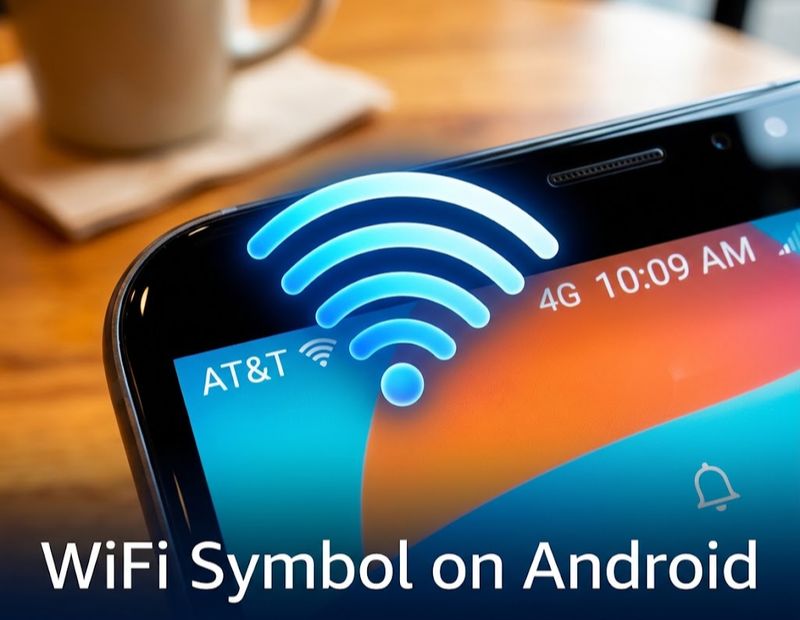
Android phones show the most detailed WiFi information at the top of the screen. The icon is usually a fan shape with several filled sections.
What You Might See on Android?
- Solid fan: a strong, working connection.
- Partly filled fan: a weaker signal, often far from the router.
- Fan with an exclamation mark: connected, but no internet.
- Fan with an X or slash: disconnected or turned off.
- Fan with arrows: data is moving back and forth.
- A number beside the fan: the WiFi generation, such as 6 or 7.
Phone makers customize their own interface, so the look differs slightly between brands. The meaning, however, stays the same.
How to Turn WiFi On or Off on Android?
- Swipe down from the top of the screen.
- Tap the WiFi tile to switch it on or off.
- Long press the tile to see nearby networks.
WiFi Symbol in Laptop
On a laptop, the WiFi icon lives in the system tray (Windows) or the menu bar (Mac).
Windows Laptop
On Windows, the icon sits at the bottom right corner near the clock. You may see:
- Arcs: connected with internet.
- Globe: WiFi is on, but there is no internet.
- Computer with cable: connected through Ethernet.
- Airplane: airplane mode is switched on.
- Red X: no networks are available.
Mac Laptop
On a Mac, the icon sits at the top right of the screen. A solid fan shows a good connection, and grey arcs show that you are not connected. A tiny exclamation mark can appear if the network has an issue.
If the WiFi Symbol Is Missing on Your Laptop
Try these steps in order:
- Press the function key with the wireless icon, usually F2, F3 or F12.
- Check that airplane mode is off.
- Restart the laptop.
- Update or reinstall the network adapter driver.
- Run the built in network troubleshooter.
No WiFi Symbol: What It Means and How to Fix It?
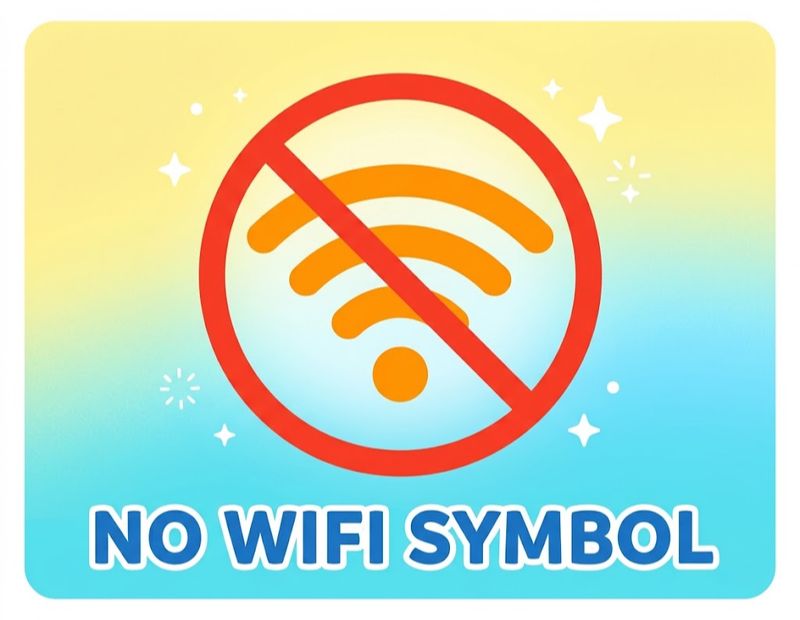
A “no WiFi symbol” usually appears as a slashed or crossed out icon. It tells you the wireless connection is off or unavailable. It can also mean the symbol itself has vanished from your screen.
Common Causes
- WiFi is switched off in settings.
- Airplane mode is active.
- The router is powered off or out of range.
- The network adapter driver has failed.
- A software glitch is hiding the icon.
Quick Fixes
- Toggle WiFi off and on again.
- Turn airplane mode on for ten seconds, then off.
- Restart your phone or laptop.
- Restart the router by unplugging it for thirty seconds.
- Forget the network and reconnect with your password.
- Reset network settings as a last step.
Most of the time, one of the first three steps solves the problem.
WiFi Symbol With Exclamation Point
An exclamation point on the WiFi icon is one of the most common warnings. It means your device is connected to the router, but the router cannot reach the internet.
Think of it like a phone that connects to a tower but has no line to the outside world. The local link works, but the path to the web is broken.
Why It Happens?
- Your internet service provider has an outage.
- The modem lost its connection.
- The router needs a restart.
- DNS settings are wrong.
- The network needs a login, as in hotels and airports.
How to Fix It?
- Open a browser and see whether a login page appears.
- Restart the modem and router.
- Check whether other devices have the same problem.
- Forget the network and join again.
- Change your DNS to a public one, such as Google or Cloudflare.
- Contact your internet provider if the problem lasts.
If only one device shows the warning, the issue is probably with that device. If every device has it, the problem is the router or the provider.
Why Does the WiFi Symbol Have a 6?
The number 6 means you are connected to a WiFi 6 network. WiFi 6 is the name of the 802.11ax standard, a newer generation of wireless technology.
In the past, wireless versions had confusing names like 802.11n or 802.11ac. The industry changed to simple numbers so that normal people could understand them. Many phone makers now show that number next to the WiFi symbol when you join a network of that generation.
WiFi Generations at a Glance
| Name | Technical Standard | Approximate Release |
|---|---|---|
| WiFi 4 | 802.11n | 2009 |
| WiFi 5 | 802.11ac | 2014 |
| WiFi 6 | 802.11ax | 2019 |
| WiFi 6E | 802.11ax (6 GHz band) | 2020 |
| WiFi 7 | 802.11be | 2024 |
Newer Android phones may also show a 7 when you connect to a WiFi 7 network. Some software versions only display the number for the newest standards, so a missing number does not always mean you have a slow connection.
Why Do I See a 6 Sometimes and Not Other Times?
Your phone shows the number only when two things are true. First, your router must support that WiFi version. Second, your device must support it too. If either one is older, the phone falls back to the older standard and may hide the number.
iPhones usually keep a plain icon and do not show the number in the status bar, though the network details can reveal more information.
What Are the Bars Next to the WiFi Symbol?
The bars or arcs show your signal strength. More filled sections mean a stronger connection between your device and the router.
How to Read the Bars?
| Bars Filled | Signal Quality | What to Expect |
|---|---|---|
| 4 of 4 (or 3 of 3) | Excellent | Fast browsing, smooth video calls |
| 3 of 4 | Good | Reliable for streaming and work |
| 2 of 4 | Fair | Occasional slowdowns |
| 1 of 4 | Poor | Buffering and dropped connections |
| 0 | None | No usable connection |
The Technical Side: Signal Strength in dBm
Behind the bars, your device measures signal strength in dBm. The numbers are negative, and a number closer to zero is better.
| Signal Level | Meaning |
|---|---|
| About -30 to -50 dBm | Excellent |
| About -50 to -60 dBm | Good |
| About -60 to -70 dBm | Fair |
| About -70 to -80 dBm | Weak |
| Below -80 dBm | Very poor |
Bars are only a rough guide. Full bars show a strong signal, but they do not promise fast internet. A busy network or slow provider plan can still hold you back.
How to Improve Your Signal Bars?
- Place the router in a central, open spot.
- Keep it away from microwaves, thick walls and metal objects.
- Raise it off the floor.
- Switch to the 5 GHz band for shorter range but higher speed.
- Add a mesh system or range extender for large homes.
- Update the router firmware.
WiFi Calling Symbol
WiFi calling lets you make calls and send texts over a wireless network instead of the cellular network. It helps in places with weak mobile coverage, such as basements and rural homes.
When this feature is active, your phone usually shows one of these cues:
- The words “WiFi” or “WiFi Calling” beside your carrier name.
- A small phone icon combined with the WiFi arcs.
- A call label that mentions WiFi in the call screen.
The exact label depends on your phone brand and carrier. If you do not see it, open your phone settings, search “WiFi calling,” and make sure the toggle is on. Your carrier must also support the feature.
WiFi Signal Symbol vs Mobile Signal Symbol
People often mix up the two icons. The table below clears up the difference.
| Feature | WiFi Symbol | Mobile Signal Symbol |
|---|---|---|
| Shape | Curved arcs or fan | Vertical bars rising in height |
| Connects To | Router or hotspot | Cell tower |
| Range | Short, usually inside a building | Long, across a wide area |
| Cost | Often free or flat fee | Uses your data plan |
| Text Label | May show 4, 5, 6 or 7 | May show 4G, 5G or LTE |
Remember this simple rule: arcs mean WiFi, and straight bars mean cellular.
Other Everyday Uses of the WiFi Symbol
The icon has moved far beyond phone screens. You will now spot it in many places:
- Cafes, hotels and airports: stickers show where free internet is offered.
- Smart home devices: lights, plugs and cameras use it to show a connected state.
- TVs and streaming boxes: it appears in the settings and corner menus.
- Cars: many cars display it for in car hotspots and updates.
- Public transport: buses and trains advertise onboard internet with the symbol.
- Printers and appliances: a blinking icon shows pairing mode.
- Web design: it appears in apps, dashboards and network maps.
A solid icon on a smart device normally means it is online. A blinking one often means it is trying to connect or waiting for setup.
Design Tips for Using the WiFi Symbol
If you are a blogger, designer or business owner, a few simple rules will help you use the icon well.
- Keep the proportions of the arcs intact so the icon stays recognizable.
- Use strong contrast between the icon and the background.
- Leave some empty space around it.
- Use SVG for logos and signs so they remain crisp.
- Match the icon style with your other icons, whether outline or filled.
- Do not stretch or distort the shape.
Using the symbol correctly also builds trust. Visitors know instantly that your venue or product offers wireless internet.
Frequently Asked Questions
What does the WiFi symbol mean?
It shows that your device is connected to, or searching for, a wireless network. The number of filled arcs shows signal strength.
What is the WiFi symbol text I can copy and paste?
You can copy 📶, 🛜 or 📡 and paste them anywhere that supports emoji. Tap the symbol, copy it, and paste it into your message or document.
How do I insert the WiFi symbol in Word?
Go to Insert, then Icons, and search “wifi.” You can also use Insert, Symbol, and choose the Segoe UI Emoji font.
Where can I get a WiFi symbol PNG for free?
Free icon libraries such as Flaticon, Icons8 and Font Awesome offer PNG and SVG files. Check each license before commercial use.
What does the WiFi symbol with an exclamation point mean?
Your device is connected to the router, but there is no working internet. Restart the router or contact your provider.
What does the no WiFi symbol mean?
A slash or X means WiFi is off, unavailable or disconnected. Turn WiFi on or move closer to the router.
Why does the WiFi symbol have a 6?
It shows you are connected to a WiFi 6 network, also known as 802.11ax. It is a newer and faster wireless standard.
What is the number 6 next to the WiFi symbol?
It is a label for the WiFi generation in use. It confirms that both your phone and router support WiFi 6.
What are the bars next to the WiFi symbol?
The bars or arcs display signal strength. More filled sections mean a stronger link to the router.
What is the WiFi calling symbol?
It usually appears as “WiFi” or “WiFi Calling” beside your carrier name. It means calls are traveling over wireless internet.
What does the WiFi signal symbol look like on a laptop?
It appears as curved arcs in the Windows system tray or the Mac menu bar. A globe, X or exclamation mark signals a problem.
Why is the WiFi symbol missing on my phone?
WiFi may be switched off, airplane mode may be on, or a software glitch may be hiding it. Restarting the phone usually brings it back.
Conclusion
The WiFi symbol looks simple, but it carries a lot of information. The arcs show your signal strength, a slash shows that WiFi is off, an exclamation point warns of no internet, and a small number reveals the WiFi generation you are using.
Now you know how to read each version, copy and paste it as text, insert it in Word, download it as a PNG and troubleshoot common warnings. The next time that little icon changes, you will know exactly what it is telling you and what to do about it.
Bookmark this guide so you can come back to it whenever you need a quick answer or a symbol to copy.
